How can I interact with TNID using Postman?
Updated 2022-02-09
Postman (https://www.postman.com) is an API platform for building and using API’s. It is a tool that can be used to execute queries against various API’s, like REST and GraphQL.
Authorization Token
Every POST to the TN.ID endpoint must contain an Authentication Header that contains a Bearer Token. To request a token, use the following data (Collection -> Authentication):
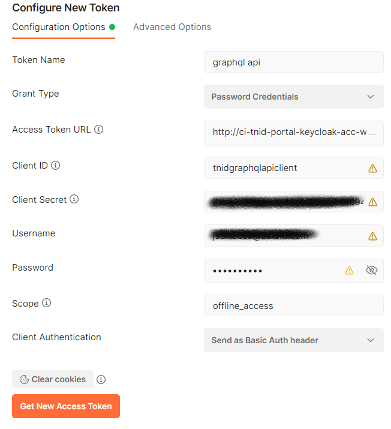
For Access Token URL, enter the url [Token_Url]. The Scope field is optional.
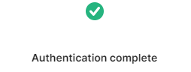
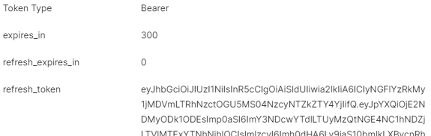
After clicking Get new Access Token, Postman should respond with:
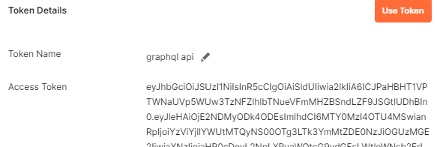
In the next dialog, the Access Token and Refresh Token are displayed:
Request Organization(s)
In Postman, create a new Request and make sure that in the Body tab GraphQL is selected:
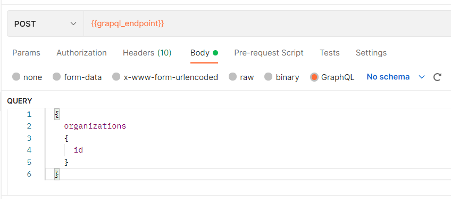
For {{graphql_endpoint}}, use the value for [GraphQL_Endpoint].
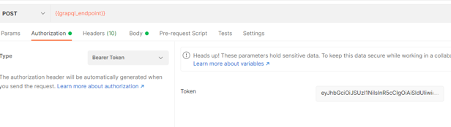
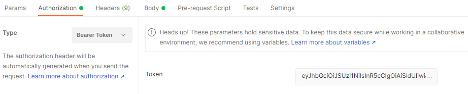
On the Authorization tab, choose Bearer Token and enter the token received earlier:
When clicking Send, the response should return the organization id that the user has access to:
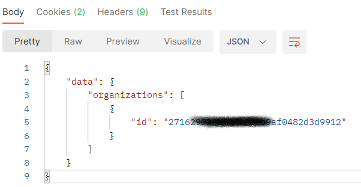
This id can be used for subsequent calls for this organization to the TN.ID GraphQL endpoint, for example, get a list of Brands:
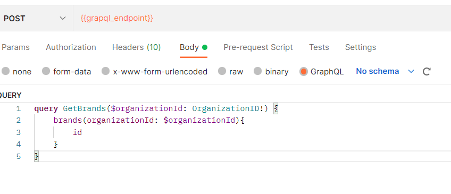
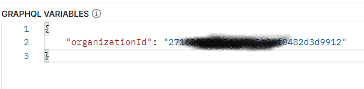
Using the organizationId as a GraphQL variable:
Create a Brand
Step 1: Set endpoint

Set the Method to POST and the url to the correct url for the environment.
Step 2: Set authorization
In the tab Authorization set the Type to Bearer Token and enter the token that is acquired from the token endpoint in the Token field:
Step 3: Set Body
In the tab Body, make sure that the body type is set to GraphQL:

In the QUERY field, enter the mutation to create a Brand:
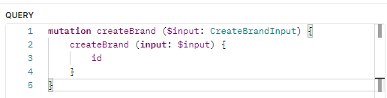
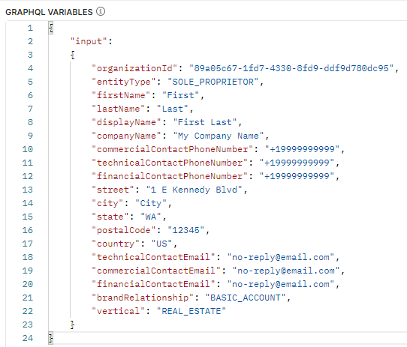
The fields that you want to receive from the created Brand can be listed immediately from the mutation. In this case, only the id field is requested. In the GRAPHQL VARIABLES field, enter the variables in the following format, so that the $input variable is correctly mapped to the “input” variable field:
Step 4: Send request
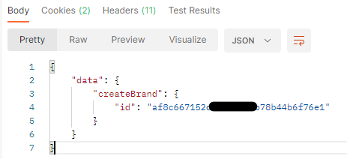
Click Send and wait for a response. If the response is successful, the id of the created Brand is returned:
Create a Campaign
Step 1: Set endpoint
Set the Method to POST and the url to the correct url for the environment.

Step 2: Set authorization
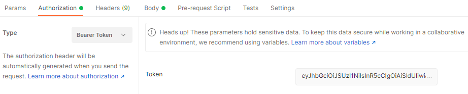
In the tab Authorization set the Type to Bearer Token and enter the token that is acquired from the token endpoint in the Token field:
Step 3: Set Body
In the tab Body, make sure that the body type is set to GraphQL:

In the QUERY field, enter the mutation to create a Campaign:
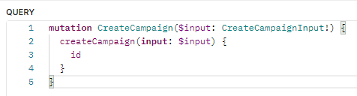
The fields that you want to receive from the created Campaign can be listed immediately from the mutation. In this case, only the id field is requested.
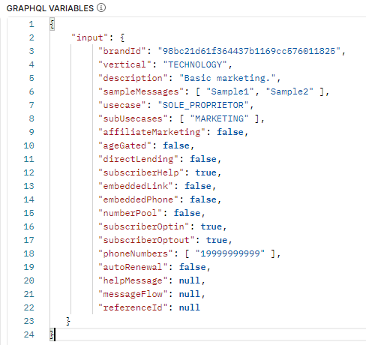
In the GRAPHQL VARIABLES field, enter the variables in the following format, so that the $input variable is correctly mapped to the “input” variable field:
Step 4: Send request
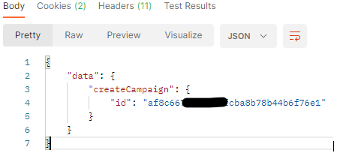
Click Send and wait for a response. If the response is successful, the id of the created Campaign is returned:
Validation errors
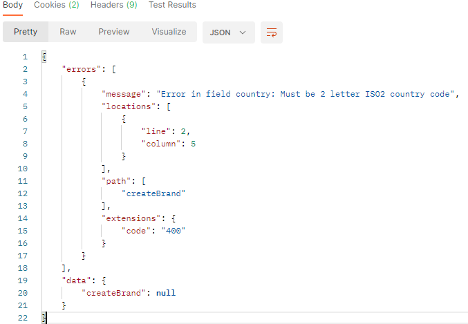
The input data is validated and if any validation errors are found, an error object is returned with the details, for example, when an invalid value for the Country field is entered: